Changing the Doctor in Rx Detail
It is important to use the correct doctor when filling prescriptions for accurate record keeping. If the incorrect doctor was selected, a different doctor can be selected in Rx Detail.
To change the Doctor in Rx Detail:
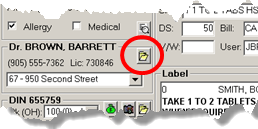
- Under the Doctor section, select the yellow folder icon. The doctor record opens for the doctor displayed in Rx Detail.
- Select the Search button.
- Search for and select a doctor. If you cannot find the doctor through this search:
- Select the MD Match button to perform a master doctor search maintained by the regulatory body in each province. The Master Doctor Search window opens.
- Select the Search button.
- Select the appropriate doctor from the Records Found list.
- Select OK. Fields are populated based on information found on the doctor in PharmaClik Rx/MD Match.
- If there is any missing information, type the doctor related information (e.g. address, phone, email).
- Select OK.
Result: The Doctor section in Rx Detail is updated with the new doctor information. Review all the information in Rx Detail and when ready, select Fill to fill the prescription.